TesterArmyTesterArmy
WelcomeIntroductionQuick Start
Run ModePreparation TestPull Request TestingProduction MonitoringGroup Webhooks
Test CredentialsAgent Mail InboxesHTTP Basic Auth
OverviewApp UploadsGitHub Actions
VercelCoolifyCoolifyCustom InfrastructureSlack
Testing Staging Environment
Getting StartedLocal Development
Run

Pull Request Testing

Pull Request Testing runs tests against every preview deployment and posts results as a GitHub comment. You can run two kinds of tests on each PR, and they work side by side:

  • Test group runs - a predefined test group runs against the preview URL. Great for catching regressions in existing application flows.
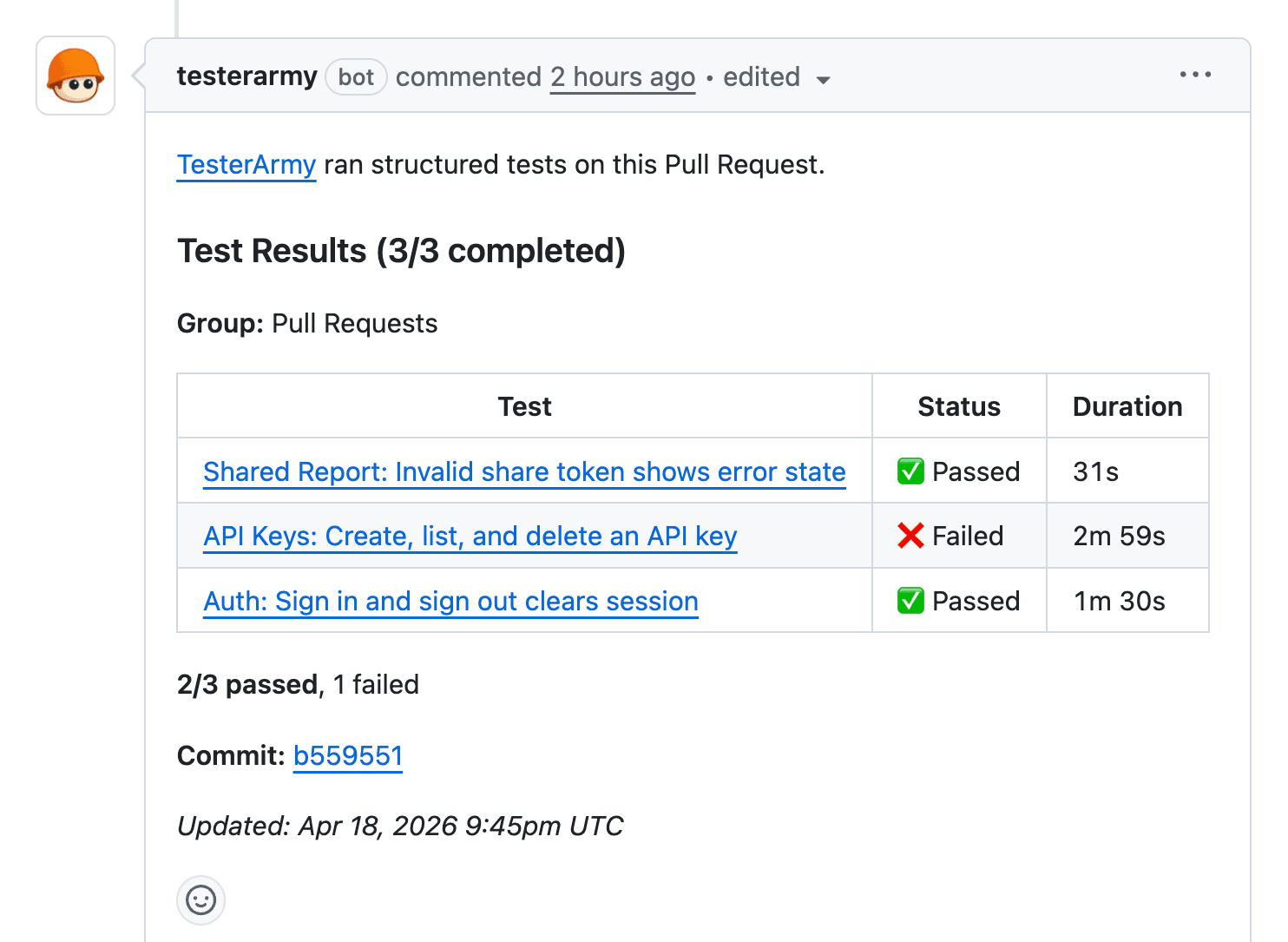
    Predefined tests PR comment

  • Exploration agent - an AI agent reads the PR context, generates a targeted test plan, and executes it in a real browser. Great for surfacing issues nobody thought to write a test for yet.
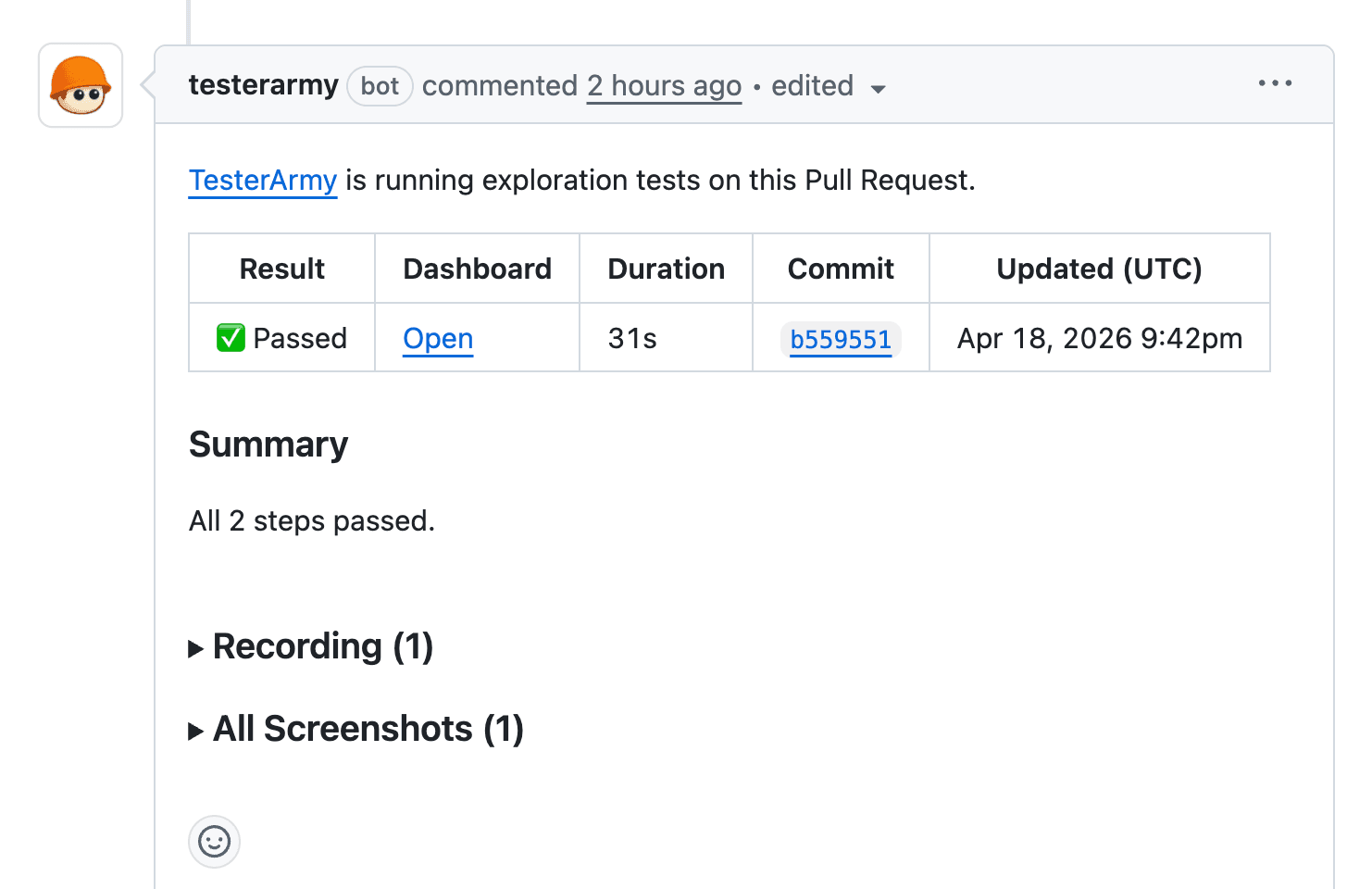
    Exploration agent PR comment

Prerequisites

Preparation Test

Previous Page

Production Monitoring

Next Page

On this page

PrerequisitesSupported providersTest group runsSetupExploration agentHow it worksTroubleshootingNo comment appears on the PRTests run against the production URL
  • GitHub App installed and connected to the repository.
  • A project linked to a GitHub repository.
  • For Vercel: connect Vercel and choose the single Vercel project this repo should test. Use Vercel, Coolify, or Custom infrastructure depending on how previews are delivered.

Supported providers

  • Vercel - triggered via GitHub deployment status events, then verified against the selected Vercel project. No webhook needed.
  • Coolify - via webhook configured in Coolify notifications.
  • Custom infrastructure - via group webhooks, triggered from your own CI (GitHub Actions, GitLab CI, Jenkins, shell scripts, etc.).

Test group runs

Reviewers see pass/fail results directly in the PR without leaving GitHub, and broken changes get caught before merge.

Setup

  1. Open your project and go to the PR Testing tab.
  2. Enable Test groups for PR runs and select the test group to run on pull requests. All tests in this group will execute against every new deployment preview.
  3. In Integrations → Vercel, connect Vercel and choose the matching Vercel project.
  4. If Vercel deployment protection is enabled, add a bypass token.

Every new preview deployment now triggers the selected test group automatically.

If the selected group uses a Preparation Test, PR runs honor it too: the prep test runs first, web consumers reuse the saved session, and non-web consumers stay in the batch without browser-session reuse.

Exploration agent

The plan is tailored to each PR and considers:

  • PR title and description - understands intent.
  • Changed files - focuses on affected areas.
  • Application context - project memory, test accounts, uploaded files.

It covers functional checks, visual verification, and edge cases relevant to the changes. For Vercel previews, connect GitHub, connect Vercel, and select the Vercel project that should be allowed to trigger tests. Add a bypass token only if previews are protected.

How it works

  1. A pull request is opened or updated.
  2. The deployment provider creates a preview and signals TesterArmy (via GitHub deployment status events for Vercel, or a webhook for Coolify).
  3. For Vercel, TesterArmy verifies that the deployment URL belongs to the selected Vercel project.
  4. TesterArmy resolves the PR from the commit SHA and triggers the configured test group and/or the exploration agent against the preview URL.
  5. Results are posted as a single comment on the PR.
  6. On subsequent pushes, the same comment is updated in place rather than creating a new one.

Troubleshooting

No comment appears on the PR

  1. GitHub App not connected - verify installation in Project Settings.
  2. Permissions - the GitHub App needs Pull requests: Read & Write.
  3. No tests configured - if you're relying on test groups, make sure one is enabled in the PR Testing tab.
  4. Vercel project not selected - open Integrations → Vercel and choose the Vercel project this repo should test.

Tests run against the production URL

  1. Deployment not detected - TesterArmy only triggers on preview deployments. Verify the deployment shows up in your provider's dashboard.
  2. Bypass token missing - if the preview URL returns an auth screen, add a bypass token.
  3. Wrong Vercel project selected - if the repo is linked to multiple Vercel projects, only the selected Vercel project is allowed to trigger tests.